November 7, 2026
How to Read PDF Aloud: A Practical Text-to-Speech Guide
Learn how to read PDF aloud, choose a text-to-speech reader and listen offline. Includes phone and desktop options, scanned PDFs and troubleshooting.
To read a PDF aloud, open it in a reader with text-to-speech, choose a voice and start playback. The reader needs access to the words in the file: a scanned image may need text recognition before it can be spoken.
If you want to hear a book, report or course handout, start with a short passage. Check that the words sound right and follow the correct order before listening to the whole document. This guide explains how to choose a method, try Read PDF Aloud and fix common problems.
What is PDF text to speech?
PDF text to speech turns the text inside a document into spoken audio. A PDF reader extracts the words, a speech engine generates a voice and the playback controls let you listen at your preferred pace. Some readers also highlight the current passage so you can follow the source page.
The document’s structure matters as much as the voice. A straightforward paragraph is usually easier to follow than a page of columns, side notes and formulas. Text-to-speech narrates the available text; it does not necessarily describe a chart or explain an equation.
Listening within a reader and exporting an audio file are separate features. Read PDF Aloud plays your documents inside the app; it does not export MP3 files.
Choose a way to read PDF files out loud
Use the method that fits where you read and how much control you need. For one paragraph, your computer’s speech feature may be enough. For a long document, consider whether you want a saved library, reading progress, page highlighting and offline playback.
On iPhone or iPad
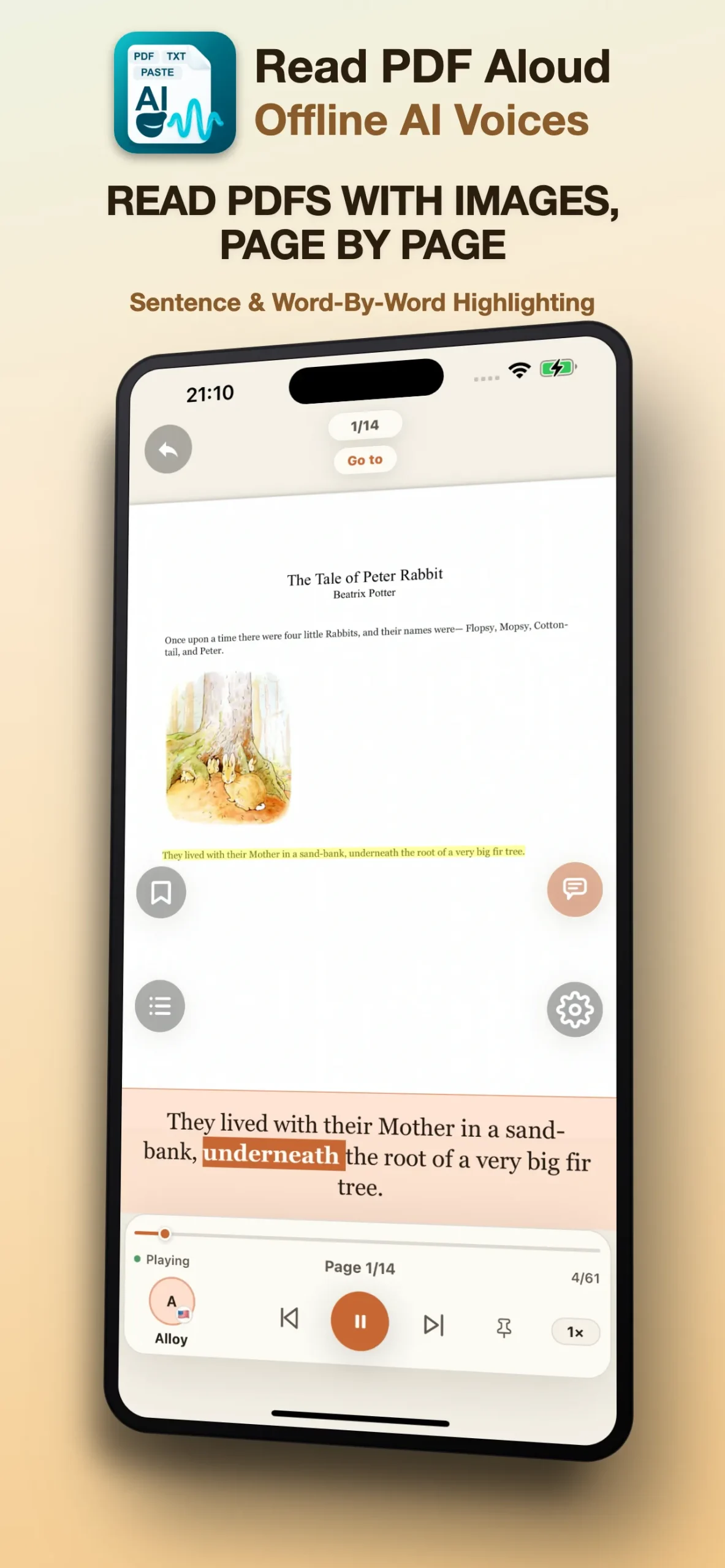
Read PDF Aloud provides a document library, on-device voices, sentence highlighting on PDF pages and background playback. Import your PDF and prepare the voice before an offline session. The device guides below also explain built-in speech options for shorter passages.
Set up PDF reading on iPhone and iPad
On a desktop computer
Adobe Acrobat Reader includes Read Out Loud. Open the PDF, activate the feature from View > Read Out Loud, then choose whether to read the current page or continue through the document. Menu access differs between Windows and macOS; Adobe’s instructions describe both.
On Mac, you can also try the system’s Speak Selection feature when your PDF viewer exposes selectable text. Follow the Mac guide for the speech settings and shortcut.
Adobe’s Read Out Loud instructions
Read aloud on Mac: settings, shortcut and compatibility
How to read a PDF aloud with Read PDF Aloud
On iPhone or iPad, begin with a document you already want to read. A short report or a few pages of ordinary text makes it easy to check the result before importing a much larger book.
- Install Read PDF Aloud and open the library. Use the plus button and choose the PDF import option.
- Select your document from Files. If it is stored in iCloud Drive or another cloud service, let the file download and finish importing.
- Open the imported PDF. Choose a voice that matches the language written in the document and complete any required voice download.
- Start playback and follow the highlighted sentence on the PDF page. Check that the narration matches the visible text.
- Adjust the speed, then try a later page. Pause when you need to inspect a figure, table or passage more closely.
Try Read PDF Aloud on iPhone or iPad
What to check in a read-aloud PDF reader
These checks are more useful than a long feature list when choosing a reader. The important result is whether your own document plays clearly on the device where you want to listen.
Read PDF Aloud offers 15 minutes of free listening per rolling 24-hour period. Longer listening requires a paid plan. Use a short PDF to try a voice, highlighting and offline playback before choosing an option in the app.
- Your actual files: test a page from the kind of book, handout or report you expect to use.
- Voice and language: preview a voice that matches the document, then listen to a full paragraph rather than only a name or greeting.
- Reading position: check how you return to an unfinished document and find the passage you need.
- Page context: decide whether you need to see highlighted text beside tables, references or diagrams.
- Offline behavior: test a different passage with the network disconnected after preparing the document and voice.
- Listening allowance and plans: check the available trial and current purchase options before planning a long session.
Can you read a PDF aloud offline?
Yes, with a reader that generates speech locally and a document and voice already available on the device. Read PDF Aloud uses on-device synthesis, so listening does not require streaming the narration from a server.
Before a trip, import your file, finish any voice download and play a short passage. Turn on airplane mode, switch Wi-Fi off and try another part of the document. Re-enable Bluetooth if you use wireless headphones. Also test playback with the screen locked if that is how you intend to listen.
A file listed in cloud storage may still need downloading. Installing the app, downloading more voices, fetching cloud files and making or restoring purchases require a connection.
Follow the offline PDF listening checklist
Why won’t my PDF read aloud?
The pages are images instead of text
A scan can look like a normal page while containing no readable text layer. Try selecting a sentence. If only the page image is available, you may need OCR, or optical character recognition, before narration. Check the recognized words before a long session, especially for blurry pages or unusual typefaces.
Prepare scanned PDFs and photos for reading aloud
The words play in an unexpected order
Columns, headers, footnotes and tables can affect text extraction. Compare one confusing passage with the original page. Try a simpler page from the same file before blaming the voice. A different layout or a cleaned-up personal text copy may be easier to follow for that passage.
The voice sounds wrong or nothing plays
Choose a voice for the written language; changing voices does not translate the PDF. Check media volume and audio output, then try a short pasted-text item with the same voice. If that works, investigate the document. If neither item plays, check voice readiness and any message shown by the app.
Get help with import, voices and playback
Questions about reading PDFs out loud
Can I listen without keeping the screen on?
Read PDF Aloud supports background and lock-screen playback. Start a short passage, lock the screen and check your audio output before settling into a longer session.
Can I listen to textbooks and research papers?
Yes, when their text can be extracted. Keep the original available for formulas, diagrams and citations, and check the reading order on multi-column pages. Listening is useful for following prose, but it does not replace checking details that speech cannot convey clearly.
Listen to textbooks and research papers
Does this turn my PDF into an audiobook file?
You can listen to a PDF book inside Read PDF Aloud and return to its saved reading progress. The app does not create a downloadable MP3 or M4B audiobook file.
Start with one PDF and one voice
Choose a document, import it and listen to one paragraph. Check the text, voice and speed together, then test another page. Once those work, prepare the file and voice for the way you plan to listen: at your desk, with the screen locked or away from Wi-Fi.
Download Read PDF Aloud for iPhone and iPad
Check Read PDF Aloud for compatible Mac computers
More guides for choosing and using a PDF reader
Choose a PDF audio reader for your documents
Free PDF read-aloud options: online and offline