October 14, 2026
How to Listen to PDF Books on iPhone and iPad
Listen to PDF books on iPhone and iPad with natural voices, highlighted text and lock-screen playback. Prepare your book and voice for offline listening.
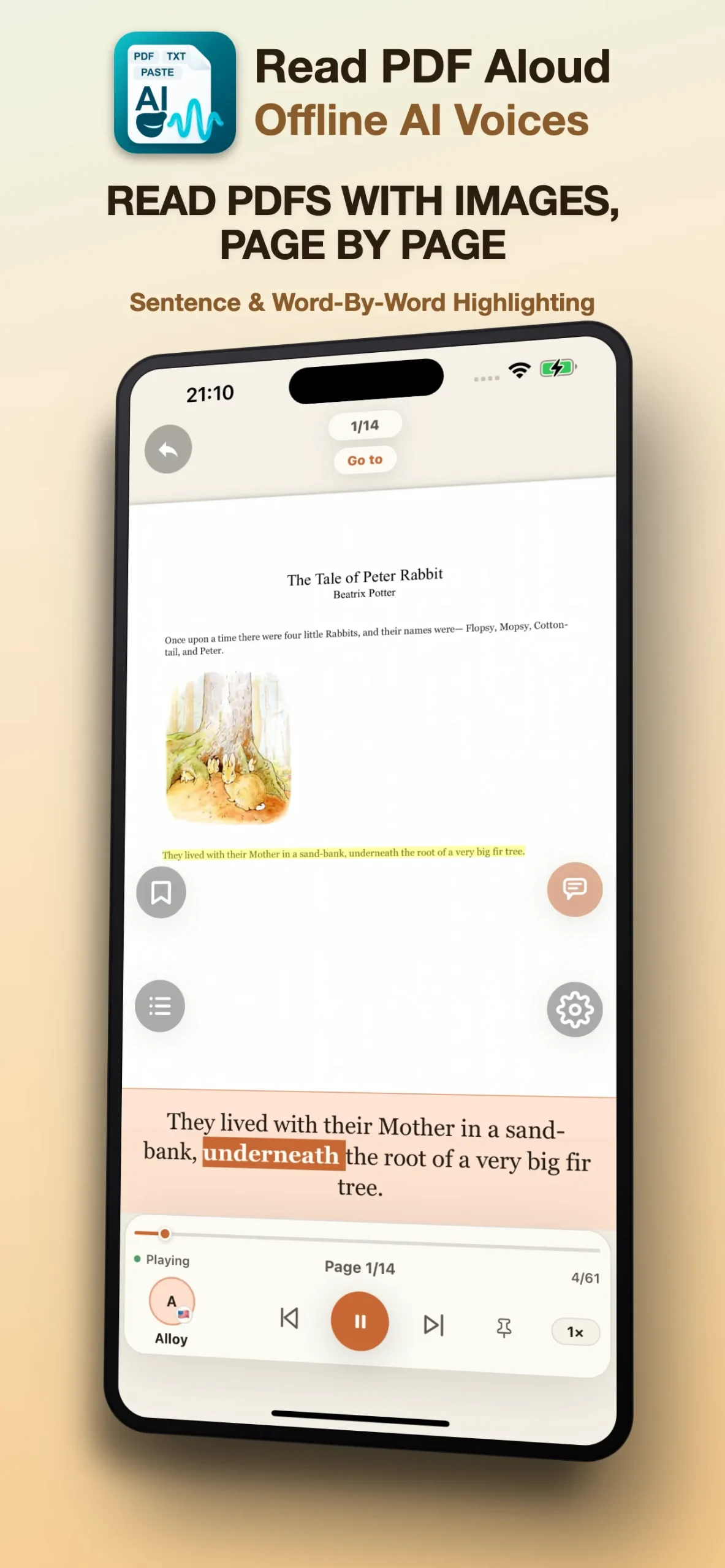
Have a book saved as a PDF but would rather listen to it during a walk or commute? Read PDF Aloud reads the text of your own PDF on iPhone and iPad while keeping the original page visible. You can follow the highlighted passage, adjust the pace and continue listening with the screen locked. Here is how to prepare a book for a useful listening session.
Start with a PDF that contains readable text
Save a copy of the book on your device and import it with the app’s PDF option. If the file is in cloud storage, download it before you leave your connection. A file appearing in a folder does not necessarily mean its pages are available offline.
Try a short passage before starting a whole book. A digital PDF usually contains text that can be extracted. A scanned book may contain page images instead; the app uses on-device text recognition, and the result depends on the image quality. Small print, blurred pages and multiple columns need particular attention.
Check a scanned PDF before listening
Choose a voice for the book’s language
Choose an English voice for an English book, or a Vietnamese voice for Vietnamese text. Selecting a different voice does not translate the book. Preview a voice before a long session and complete any required download while online.
Start at a pace that lets you understand the sentences without constantly pausing. A familiar novel may suit a faster pace than a technical book with new vocabulary. Change the speed to suit the material rather than trying to finish every book at the same rate.
Listen to voice samples in 31 languages
Follow the source, then listen with the screen locked
During the first passage, compare the spoken words with the highlighted text. Check that page headers, footers and columns have not interrupted the reading order. If a sentence sounds wrong, inspect the source text; a natural voice cannot fix an extraction error.
Once the passage reads correctly, you can keep listening in the background or with the screen locked. Use the playback controls when you want to pause or return to the text. The app keeps reading progress on your device, and notes and bookmarks can help you return to a useful passage.
Prepare a book for offline listening
PDF listening with a downloaded voice and a local document can work offline. Downloading additional voices and using online AI analysis still require a connection.
- Import the PDF and open it while you still have a connection.
- Finish downloading the voice you want to use.
- Play a short passage, then test it with the network disconnected.
- Check headphone output and choose a comfortable listening speed.
Follow the offline listening checklist
What does a PDF audiobook reader actually do?
For this workflow, ‘PDF audiobook’ means listening to your book inside the reader using text to speech. The guide covers in-app playback; it does not describe creating a separate downloadable MP3 or M4B audiobook. If exporting an audio file is your requirement, check that capability before choosing a product.
Read PDF Aloud reads files you provide. It is not a catalog of commercial audiobooks. Use books you own or are permitted to read. Password-protected, damaged or unsupported PDFs may not extract correctly.
Try a short session before a longer book
The free plan provides up to 15 minutes of listening per rolling 24-hour period across PDFs and notes. It resets 24 hours after that period starts, rather than at midnight. Use a sample chapter to check your voice, text quality and preferred pace. Paid options remove the daily listening limit; review the current options in the app.