November 7, 2026
How to Read Aloud on iPhone: Text, Safari and Notes
Make your iPhone read text aloud with Speak Selection, Speak Screen or Safari. Learn how to listen to notes and save text for offline listening.
To read aloud on iPhone, use Speak Selection for a passage or Speak Screen for onscreen text. Safari also has a listening option for supported webpages. For longer reading sessions, you can paste text or write notes in Read PDF Aloud and listen with an on-device voice.
Start with what you want to hear: a paragraph, a web article, your own notes or a document. The steps below help you choose a method and prepare text you want to keep listening to later.
How to make your iPhone read text aloud
These features work without turning on VoiceOver. You can choose a voice and adjust the speaking rate in the speech settings.
- Open Settings, then Accessibility, then Read & Speak. The section may be called Spoken Content on older iOS versions.
- Enable Speak Selection. In an app that supports text selection, select a passage and choose Speak from the text menu.
- For the screen instead of a selection, enable Speak Screen, then swipe down from the top with two fingers. Use the speech controls to pause or adjust the pace.
Apple’s guide to speaking selected text and the screen
How to read a webpage aloud in Safari on iPhone
Apple offers this for supported webpages; the option is not available for every site. If your aim is to hear an article right now, try it before moving the text into another app.
If you want a saved copy for later listening, copy the article text you can access and paste it into Read PDF Aloud. Review the pasted text so navigation labels, captions or unrelated sections do not interrupt the reading.
- Open the webpage in Safari.
- Tap the Page Menu button beside the address field.
- Choose Listen to Page when it is available. Reopen the menu to pause or resume playback.
Apple’s instructions for listening to a webpage in Safari
How to read notes aloud on iPhone
This works well for a meeting outline, a draft you want to review by ear or a set of reading notes. A pasted item is a separate copy: edits you later make in Apple Notes do not automatically update it. Paste the revised text again when you need the latest version.
Keep a short title that tells you which version you saved. For example, a dated meeting outline is easier to find again than several items with the same untitled name.
- Copy the text you want to hear from your note.
- Open Read PDF Aloud and tap the plus button in the library.
- Choose Paste text to bring in the clipboard contents, or choose New blank note to write directly in the app.
- Give the item a useful title and open it in the reader.
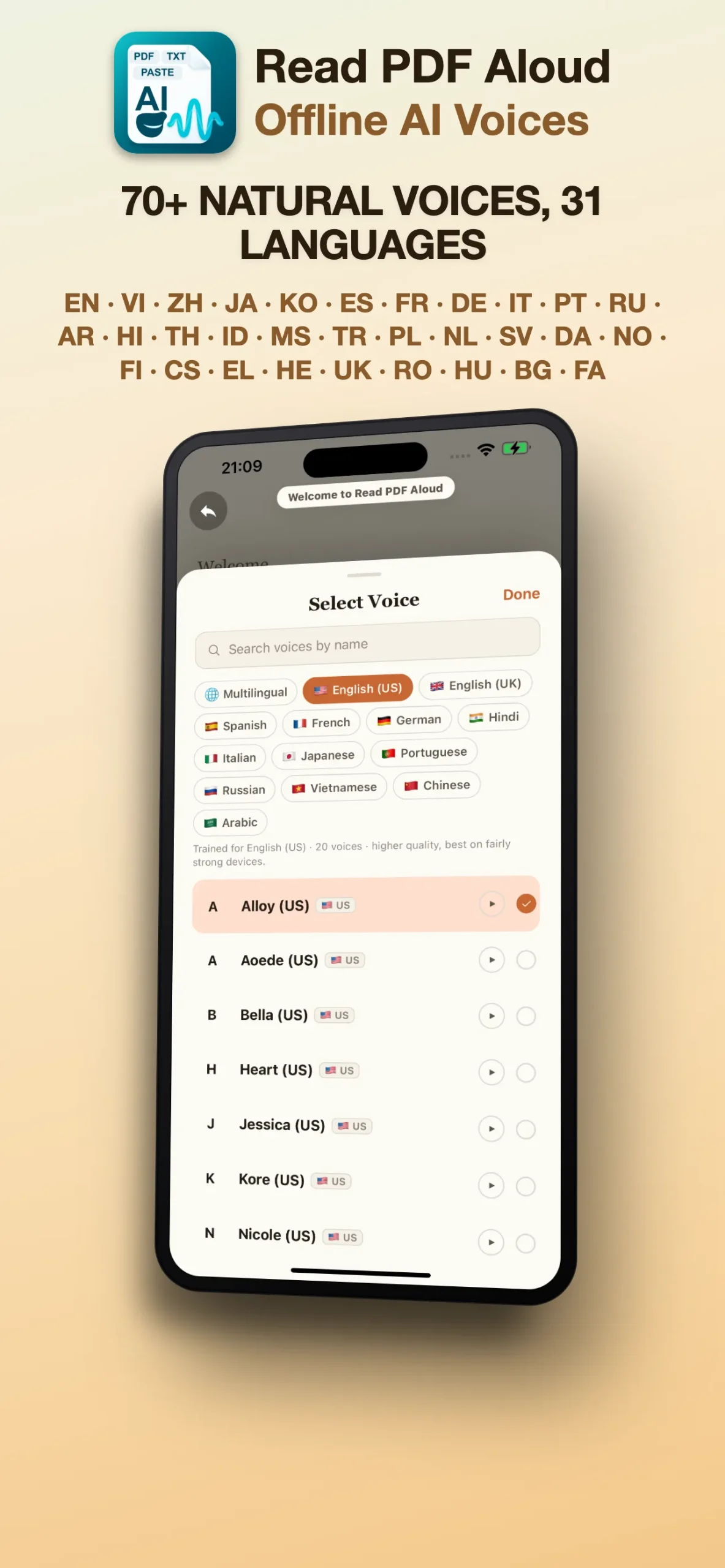
- Choose a voice for the language you wrote in, then start playback and adjust the speed.
Listen to saved text offline with Read PDF Aloud
You still need a connection to install the app, download additional voices, retrieve cloud files or make and restore purchases. Test your own saved item before a trip rather than relying on a webpage remaining open in a browser tab.
You can try the app with 15 minutes of free listening per rolling 24-hour period. Longer listening requires a paid plan; current options appear in the app.
- While online, save your text or import your document and prepare the voice you want to use.
- Start playback and check the audio output.
- Turn on airplane mode and switch Wi-Fi off. Re-enable Bluetooth if your headphones need it.
- Open the saved item and play a different passage. For background listening, also test playback after locking the screen.
Try Read PDF Aloud on the App Store
Preview the available reading voices
Does “read texts out loud” mean text messages?
If you mean incoming messages rather than an article or note, look for Announce Notifications in iPhone Settings. With compatible AirPods or Beats, Siri can announce notifications from Messages when the feature is enabled and the device is locked. You can choose which apps announce notifications.
That is a different task from saving a document for narration. Read PDF Aloud does not automatically monitor or announce your incoming text messages.
Apple’s Announce Notifications setup and compatible headphones
What if the text you want to hear is a PDF?
Import the PDF itself into Read PDF Aloud instead of copying page after page into a note. That keeps your reading item tied to the document, with sentence highlighting on the PDF page and saved reading progress.
Check one page before starting a long session. A scanned page may need text recognition, while columns and tables can produce an unexpected reading order. Compare the narration with the original page when details matter.
How to read a PDF aloud on iPhone and iPad
How to listen to PDF offline on iPhone
Prepare scanned PDFs and photos for reading aloud
A useful first read-aloud session
Pick a page or note you already want to read. For a quick passage, try the iPhone’s built-in speech options. For saved text you want to revisit, paste a clean copy into Read PDF Aloud, choose a voice and listen to the first paragraph.
If the result sounds wrong, check the text before changing everything else. Missing punctuation, copied menu items and the wrong document language can make an otherwise clear voice difficult to follow. Clean up a short passage and test again before importing a much longer one.
Once your text, voice and playback speed work together, run the offline check. You will know what is saved and ready before you leave your connection behind.
Download Read PDF Aloud for iPhone and iPad
Get help with text, voices and playback
Read aloud on your other devices
Using a tablet or computer? Follow the separate guides to read aloud on iPad or read aloud on Mac.