October 14, 2026
How to Listen to PDF Offline on iPhone and iPad
Listen to PDF offline on iPhone and iPad. Import your file, prepare a voice and test airplane-mode playback with this practical read-aloud guide.
You can listen to PDF offline on iPhone and iPad with Read PDF Aloud once your document is imported and your chosen voice is available on the device. Speech is generated on your device, so you do not need to stream the narration while you listen.
The useful test is simple: open your imported PDF, turn off Wi-Fi and mobile data, then start playback. This guide walks through the setup, explains what still needs an internet connection and helps you fix the most common problems before a flight or commute.
Try Read PDF Aloud on iPhone or iPad
What you need to read a PDF aloud offline
An offline PDF viewer and an offline PDF audio reader do different jobs. A viewer may let you see downloaded pages without a connection. To hear those pages, you also need a reader that can turn their text into speech locally.
- A PDF imported into your app library, rather than only listed in iCloud Drive or another cloud service.
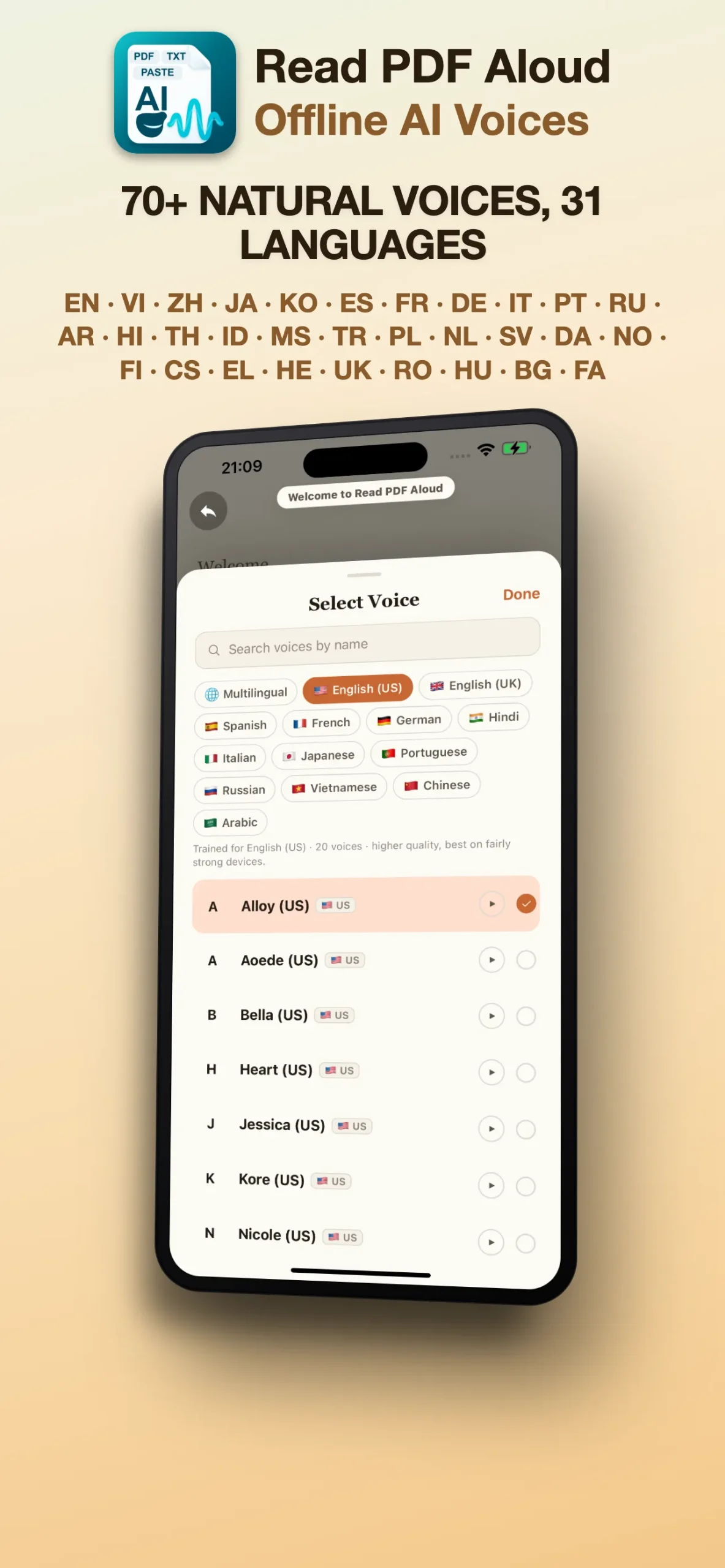
- A voice for the document’s language, with any required voice download completed.
- Readable text extracted from the PDF. Scanned pages need text recognition first.
- A short playback test with Wi-Fi and mobile data switched off.
Listen to voice samples before choosing a reading voice
How to listen to PDF offline on iPhone
For a longer session, lock the screen and check that listening continues through your selected audio output. Read PDF Aloud supports background and lock-screen playback, so you can listen without keeping the PDF page visible.
Use this check before leaving home. Discovering an unfinished voice download while you still have Wi-Fi is much easier to fix than discovering it after takeoff.
- Install Read PDF Aloud while you have an internet connection. Open the app and use the PDF import option to select your document from Files. If the file is in cloud storage, allow it to download and finish importing.
- Open the imported PDF and choose a voice that matches the text’s language. Complete any download the app requests before disconnecting.
- Play a short passage. Check the pronunciation, adjust the reading speed and follow the highlighted sentence on the PDF page.
- Turn on airplane mode, then make sure Wi-Fi is off too. If you use wireless headphones, turn Bluetooth back on and confirm they are connected.
- Return to the PDF and play another passage. Move to a later part of the document and try that too, so you check more than the passage you just heard.
How to make an iPad read a PDF aloud
The offline setup on iPad follows the same steps: import the PDF, prepare the voice and test playback with the network off. The larger screen is useful when you want to read along with the highlighted sentences in a textbook, report or long article.
If your PDF is in iCloud Drive, open and import it before you disconnect. A filename appearing in Files does not prove the full document is stored on the iPad. Check the imported copy inside Read PDF Aloud, then try playback in airplane mode.
Choose the voice for the language actually written in the document. Changing the reading voice does not translate the PDF.
Can iOS read a PDF aloud without another app?
Apple provides Speak Screen and Speak Selection in its accessibility settings. These can be useful for a quick passage when the PDF viewer exposes readable text. In Settings, open Accessibility and look for Read & Speak; the section name can vary with your system version. Enable the speech option you want and try it in your PDF viewer.
For regular listening, Read PDF Aloud keeps imported documents, reading progress, voice selection and playback controls together. Test your chosen method with your actual PDF before relying on it offline.
Apple’s iPhone spoken-text instructions
Apple’s iPad spoken-text instructions
What works offline, and what needs internet?
With your imported PDF and voice ready, Read PDF Aloud synthesizes the narration on the device. You can listen, adjust playback speed and read along with sentence highlighting without streaming speech from a server.
You still need internet to install or update the app, download additional voice models, retrieve documents from cloud storage or make and restore purchases. Prepare those steps before disconnecting. Listening inside the reader does not create an MP3 file.
See the guide to listening to your own PDF books
Why won’t my PDF read out loud offline?
The file is still in the cloud
Reconnect, download the PDF and finish importing it into the app. Then open the imported document and repeat the offline test. A cloud-storage shortcut is not the same as a local reading item.
The selected voice is not ready
Reconnect and check whether that voice needs a model download. Wait for it to finish. If a voice cannot load because the device has too little available memory, try another voice or close other apps before testing again.
The PDF contains scanned images
A photo of a page may look readable while containing no selectable text. Scanned PDFs need text recognition before narration. Check the recognized words: blurry photos, handwriting and unusual layouts can produce errors.
How to prepare scanned PDFs and photos for reading aloud
You hear silence, or the words are in the wrong order
Check the media volume and headphone connection first. Try a short pasted-text item with the same voice to separate an audio or voice issue from a document issue. Multi-column pages, tables and formulas can also produce an unexpected reading order; compare a short section with the original page before a long session.
Questions about offline PDF listening
Can my iPhone read a PDF out loud with the screen locked?
Yes. Read PDF Aloud supports background and lock-screen playback. Start a passage, lock the screen and check your headphones before settling into a longer listening session.
Can I try offline PDF listening for free?
Read PDF Aloud offers 15 minutes of free listening per rolling 24-hour period. Import a short PDF and use the allowance to test a voice and offline playback on your own device. Longer listening requires a paid plan; check the app for current options.
Do I need to turn the whole PDF into audio first?
No. You do not need to export an audio file before listening. Import your document, prepare the voice and start playback in the app. The airplane-mode check confirms that your setup is ready.
Can I listen to textbooks and research papers?
Yes, when their text can be extracted. Start with a short section and check columns, citations and equations against the page. Use the original document for details that speech may not convey clearly.
Tips for listening to PDF textbooks and research papers
Try your first offline PDF session
Start with a PDF you already want to read. Import it, pick a voice, listen to a paragraph and repeat the test with the network off. Once that works, you have a practical way to keep listening on your iPhone or iPad when a connection is unavailable.
Download Read PDF Aloud on the App Store
First time using the app? Follow the PDF read-aloud setup guide.
Need help with your document or voice? Visit support.
Want to listen to a note, pasted text or a Safari article? See how to read text aloud on iPhone.