November 7, 2026
How to Read Aloud on iPad: Text, Notes and PDFs
Make your iPad read aloud with Speak Selection or Speak Screen. Follow steps for notes, Safari articles and PDF listening, including offline setup.
To read aloud on iPad, enable Speak Selection for a passage or Speak Screen for onscreen text. For longer documents, Read PDF Aloud lets you import PDFs, paste text or write notes, then listen with an on-device voice.
An iPad’s larger display is useful when you want to keep the source page visible while listening. Start with the task in front of you: a paragraph in Notes, an article in Safari or a PDF you want to hear from beginning to end.
Turn on read aloud in iPad settings
You can use these speech features without enabling VoiceOver. Choose a voice and speaking rate in the same speech settings.
- Open Settings, choose Accessibility, then Read & Speak. Older iPadOS versions may call this section Spoken Content.
- Enable Speak Selection. Select text in a supported app and tap Speak in the selection menu.
- For onscreen text, enable Speak Screen and swipe down from the top of the screen with two fingers. Use the speech controls to pause or change the pace.
Apple’s instructions for speaking text on iPad
Read a Safari article aloud on iPad
This option works with supported webpages. If you cannot find it, try selecting a paragraph and using Speak Selection. For a saved listening copy, copy the accessible article text into Read PDF Aloud and check that only the sections you want were included.
- Open the article in Safari.
- Open the page menu beside the address field and choose Listen to Page when available. The button’s appearance can vary with iPadOS.
- Use the listening controls to pause playback.
Apple’s iPad Safari listening instructions
Listen to notes while reviewing your own writing
A pasted note is an independent copy. Changes you later make in Apple Notes do not update the item automatically, so paste your latest revision again when needed.
For a draft, listen to one section at a time and compare it with your source. You may notice a sentence that is too long, a missing word or punctuation that needs attention. Keep names and numbers visible so you can check them rather than relying only on their pronunciation.
- Copy the passage you want to review.
- Open Read PDF Aloud and use the plus button in the library.
- Choose Paste text, or choose New blank note to write directly in the app.
- Name the item, choose a voice matching the written language and start playback.
How to read a PDF aloud on iPad
Import the PDF itself when you want to keep listening tied to the source pages. Copying a whole textbook into a note can lose the page structure you need for checking diagrams, tables or citations.
- In Read PDF Aloud, choose the PDF import option and select a file from Files. Allow any cloud download and import to finish.
- Open the imported PDF and choose a voice for the document’s language. Complete any model download the app requests.
- Play a short section and follow the highlighted sentence on the PDF page.
- Adjust the speed, then check another page before starting a long session.
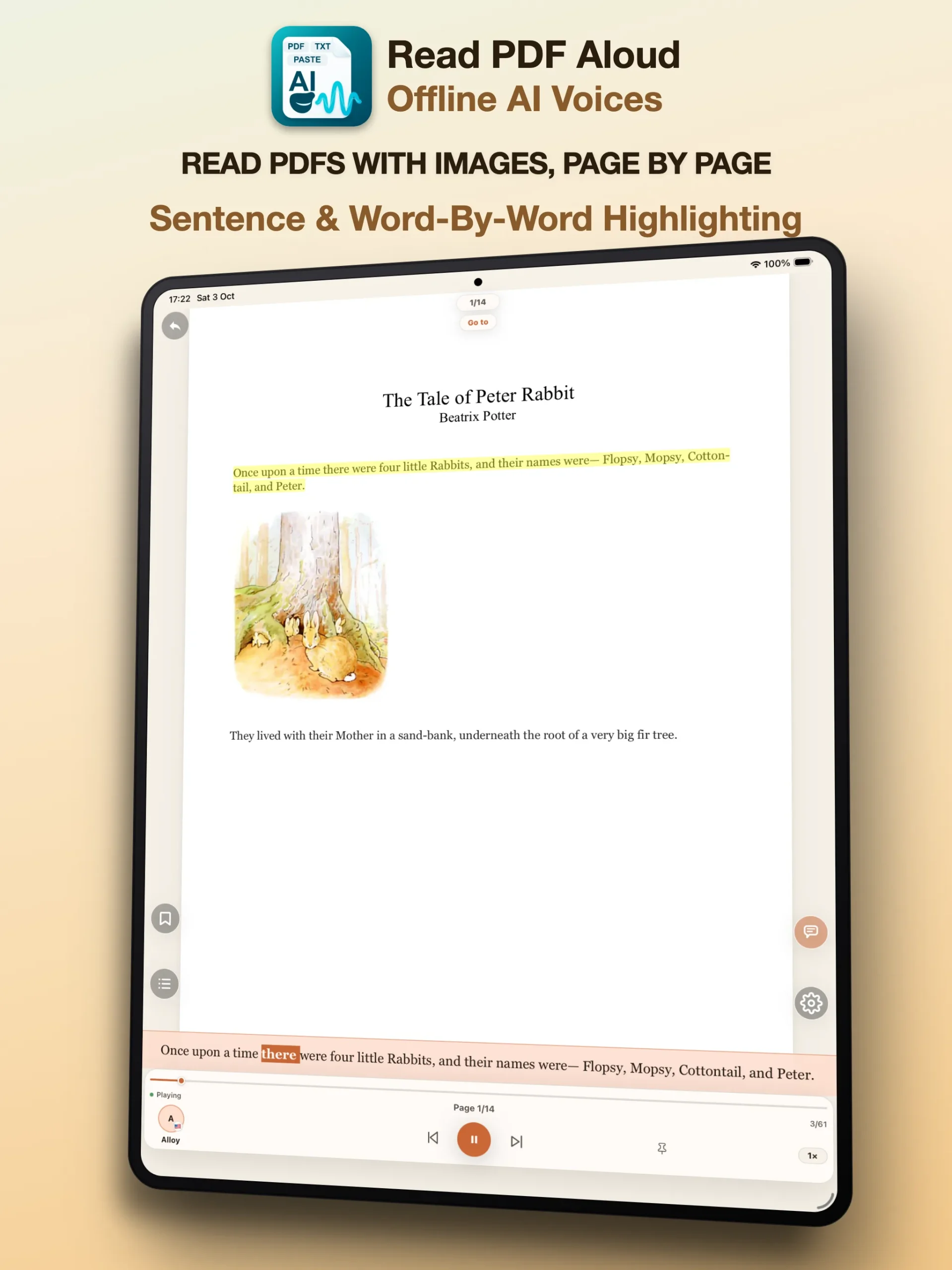
Follow the PDF import and playback guide
Tips for listening to textbooks and research papers
Prepare your iPad for offline listening
Installing or updating the app, downloading additional voices, retrieving cloud files and making or restoring purchases still require a connection. Run this check before a trip or a study session away from Wi-Fi.
You can try Read PDF Aloud with 15 minutes of free listening per rolling 24-hour period. Longer listening requires a paid plan; see the app for current options.
- Save the text or import the PDF while online, and finish any required voice download.
- Play a paragraph and check the audio output.
- Turn on airplane mode and switch Wi-Fi off too. Re-enable Bluetooth for wireless headphones if needed.
- Open the saved item and play a different passage. Lock the screen and check playback if you plan to listen with the display off.
Preview voices before choosing one
When a PDF sounds wrong or does not play
Try a short pasted-text item with the same voice. If that works, check the PDF’s text rather than repeatedly changing voices. A scanned page may need text recognition; multi-column layouts can also change the extracted order.
Compare one page with the spoken result. For equations, charts and tables, keep the original visible and read the details yourself when narration does not convey them clearly. If you hear silence, check the media volume and headphone connection before importing the file again.
Check scanned PDFs and photos before listening
Get help with documents and playback
Choose the guide for your other device
The same reading task can use different controls on a phone or desktop. Use the guide for the device where you plan to listen.