October 14, 2026
How to Read a PDF Aloud on iPhone and iPad
Learn how to import a PDF, choose a voice, adjust playback speed and follow highlighted text with Read PDF Aloud on iPhone and iPad.
Listening to a PDF can help you review a long document when you need a break from looking at the screen. Read PDF Aloud combines a document library, voice controls and highlighted PDF text on iPhone and iPad. Here is how to prepare a document and start listening.
Import your PDF
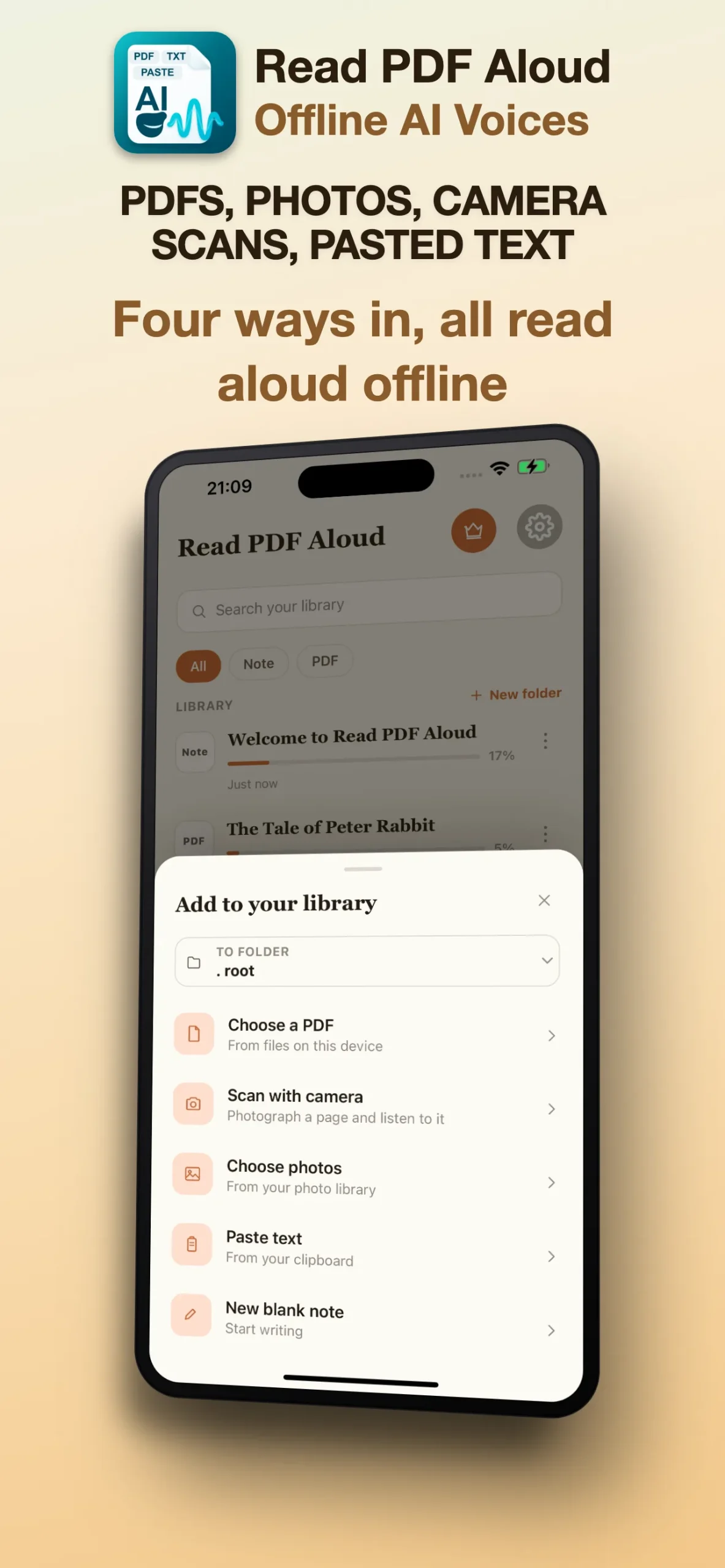
Install Read PDF Aloud from the App Store, open the app and use the PDF import option to choose a document. Keep the file on your device if you plan to read away from a network connection. The app also accepts camera scans, photos, pasted text and notes.
Check whether your PDF contains text
Some PDFs contain selectable text. Others are images of printed pages, even when they look like a normal document. A scanned page needs text recognition before it can be spoken. If words are missing or playback has nothing to read, see the guide to scanned PDFs and photos.
Choose a voice and start playback
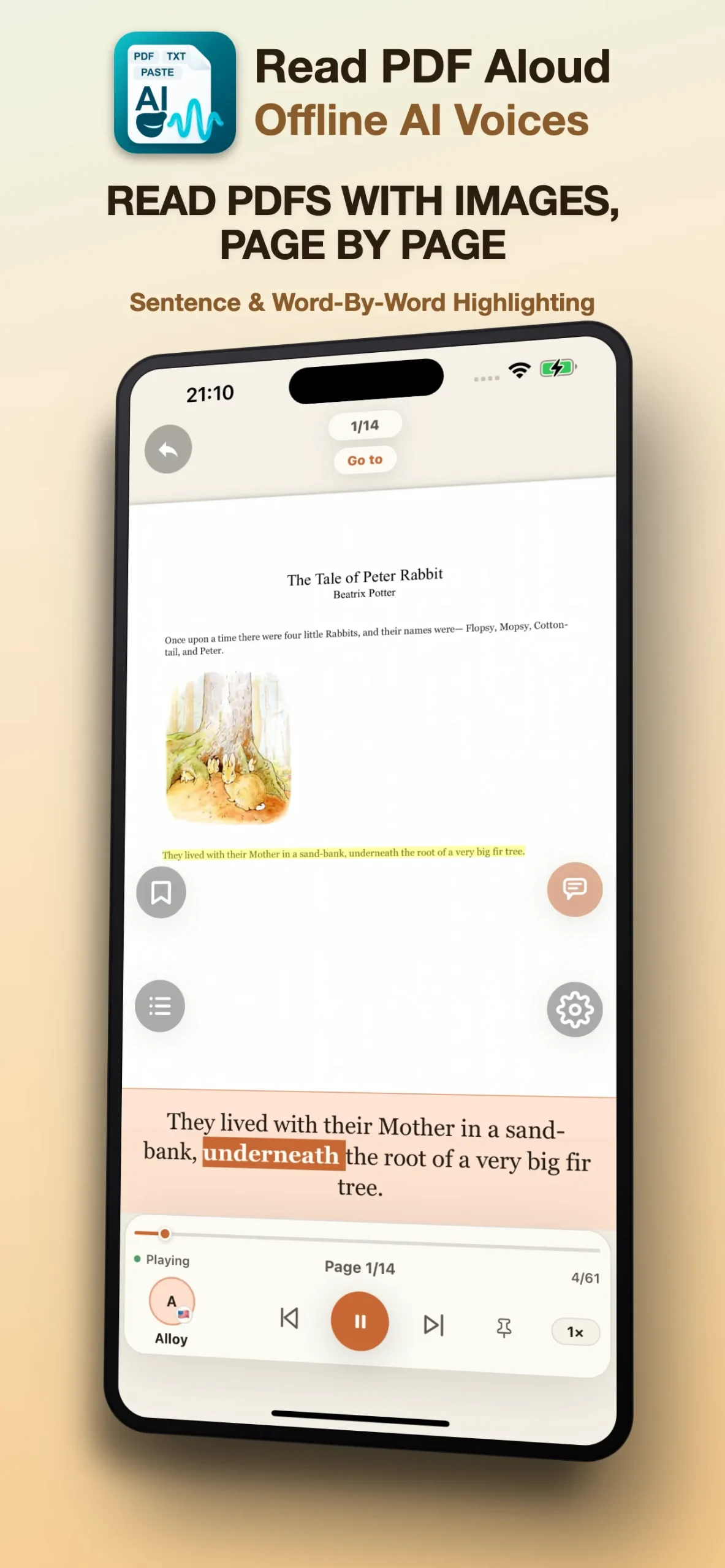
Open the imported item and select a voice that matches the language of the document. Download the voice while online if it is not already installed. Start playback and follow the active passage in the PDF. Use the playback controls to pause when you need to check a figure, a formula or a passage that needs closer attention.
Set a comfortable listening speed
Start with a speed that lets you follow unfamiliar words comfortably. You can increase it for material you already know or slow it down for dense writing. If the reading sounds confusing, check the visible text first: columns, tables and unusual page layouts can affect the order of extracted text.
Prepare for offline reading
Download your chosen voice and import the document before leaving your connection. Test a short passage offline so you know the required content is available. Downloading more voices and fetching online files still need internet. The offline PDF listening guide explains the preparation steps.
When playback needs troubleshooting
Check your device volume, audio output and selected voice. Try a short pasted paragraph to see whether the issue affects one document or all playback. If a specific PDF fails, try a page with ordinary text and review any scanned content. Visit Read PDF Aloud support for import and playback help.