November 25, 2026
How to Read Pages Out Loud on iPhone: Book Pages, Web Pages and Pages Files
Make an iPhone read a printed page, a web page, one page of a PDF or an Apple Pages document out loud.
An iPhone can read pages out loud, but “pages” can mean a page of a printed book, a web page, page 40 of a PDF or a file made in Apple’s Pages app. The steps are different for each.
Find your kind of page below. Two of the four need no extra app.
| Your page | Quickest way |
|---|---|
| A paper page | Photograph it with Read PDF Aloud |
| One page of a PDF | Go to that page and start from a sentence |
| A web page in Safari | Listen to Page, built into Safari |
| An Apple Pages document | Speak Screen, or export it and import the copy |
How to read pages out loud from a paper book
A phone can only speak words it can recognize, so the picture decides how well this works. Lay the book as flat as you can and fill the frame with one page.
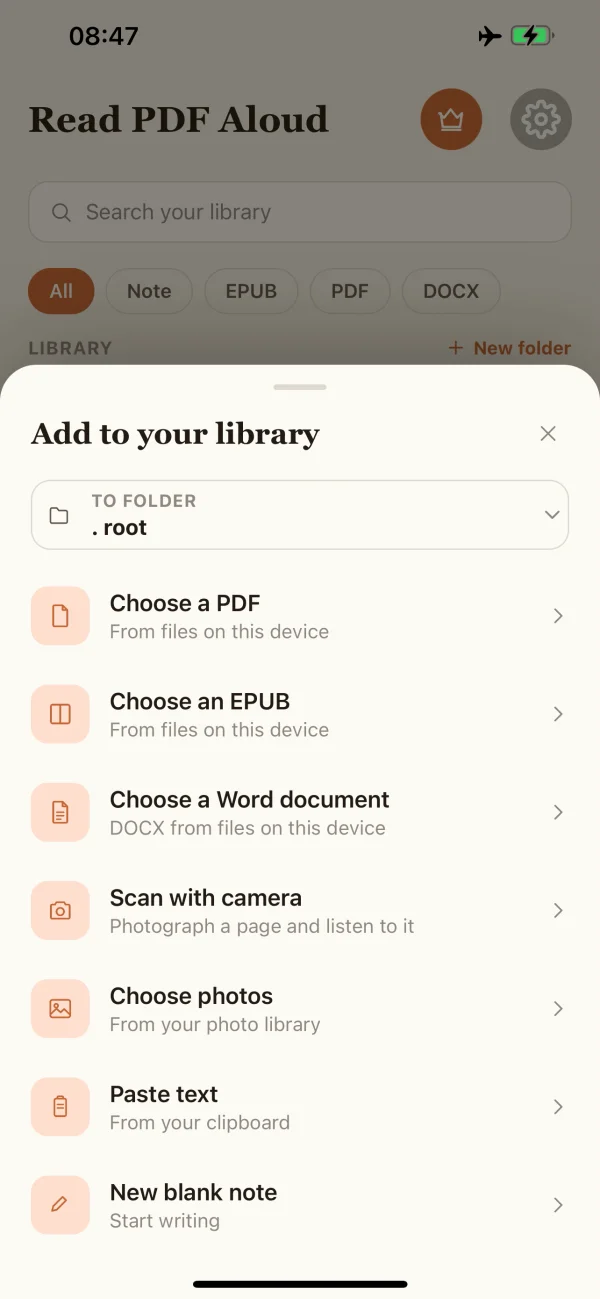
- In Read PDF Aloud, tap the plus button and choose Scan with camera.
- Photograph the page in even light. Keep the phone parallel to the paper and steady.
- Open the new item and compare the first lines with the book.
- Choose a voice for the language of the page and start playback.
Text recognition runs on the device. Curved pages near the spine, glare on glossy paper, small print and decorative type cause most mistakes. Handwriting is unreliable. If a line comes out wrong, retake the picture instead of changing the voice. The guide to checking recognized text goes into more detail.
Photograph pages from books you are allowed to copy for your own use.
Read several book pages from your photos
If the pictures are already in your photo library, tap Choose photos and select them together. They become one PDF. Check the page order in the new item before you settle in to listen, and import again if a page is missing.
For a whole book, look for a digital copy first. A PDF or EPUB with real text will always read more cleanly than fifty photographs. See how to listen to a whole PDF book.
Start a PDF from a particular page
You do not have to listen from the beginning.
- Open the PDF and tap Go to at the top of the reader.
- Enter the page you want.
- Start playback there. With Double-tap sentence to play turned on in the reader settings, double-tap the sentence where you want it to begin.
This is the quickest way to hear one assigned section of a textbook. If running headers or page numbers interrupt every page, the reader can skip the top and bottom margins; that option is included in the Lifetime and 3-month plans, and you can try it during the free 15 minutes.
First time importing a file? Follow the PDF setup for iPhone and iPad.
Read a web page out loud
Safari can do this without another app. Open the page, tap the Page Menu button by the address field and choose Listen to Page. It is not offered on every page, so it may be missing on some sites.
Apple’s Listen to Page instructions have the current steps. To keep an article for later, copy its text and use Paste text in Read PDF Aloud; the app does not import from a web address. More options are in how to read aloud on iPhone.
Read an Apple Pages document out loud
For a quick listen, try Speak Screen. Turn it on in Settings > Accessibility > Read & Speak, open the document, and swipe down with two fingers from the top of the screen. It reads what is on the screen.
To keep the document in a library and listen with the phone locked, export a copy. In Pages on iPhone, tap the More button, tap Export and choose a format. Apple lists PDF, Word and EPUB among them.
- PDF keeps the page layout and highlights each sentence on the page.
- EPUB and Word become flowing text, which is easier on a small screen.
Apple’s guide to exporting from Pages on iPhone
When words are missing or out of order
- Two columns: crop or photograph one column at a time.
- A picture of text inside a PDF: the reader has to recognize it first, and may miss captions.
- Tables and formulas: keep the page in view; speech cannot show which cell a number belongs to.
- Wrong language: pick a voice for the language on the page.
Questions about reading pages out loud
Can my phone read a book page from a photo?
Yes, when the words are sharp enough to recognize. Test one page before photographing a chapter.
Does it work without internet?
Recognition and speech in Read PDF Aloud run on the device, so a page you have already imported can be read offline with a voice you have already downloaded.
How much can I listen to for free?
15 minutes per 24 hours, across all your documents. That is enough for several pages.
Can it read handwriting?
Do not count on it. Clear printed text works best.
Try one page first
Pick the page you need today, follow the matching steps and listen to the first paragraph while looking at the original. If it matches, carry on.