November 25, 2026
Adobe Read Out Loud Not Working? What to Try, in Order
Fixes to try, in order, when Adobe Read Out Loud is silent, missing or reads the wrong words.
When Adobe Read Out Loud is not working, the cause is usually one of four things: the PDF has no text, the feature is not activated, no suitable voice is available, or the installation needs an update. Work down this list and stop when it speaks.
These steps are for Acrobat and Acrobat Reader on a computer. They come from Adobe’s instructions and from replies on Adobe’s community forum, linked below. We did not reproduce each fault ourselves.
1. Check that the PDF contains text
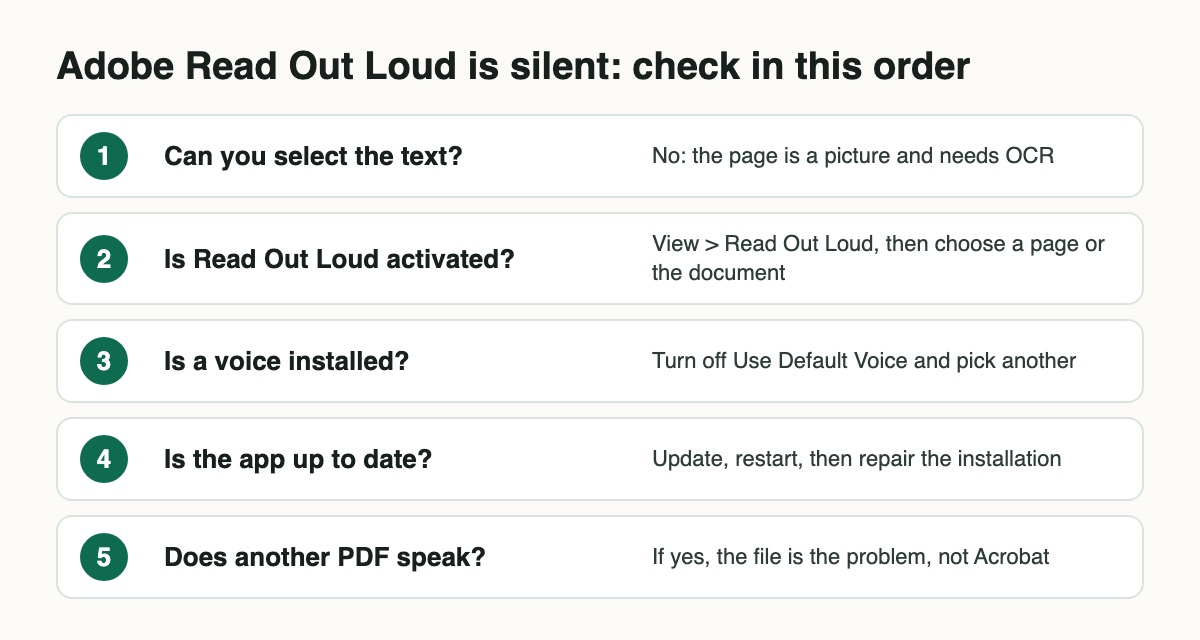
Try to select one sentence with the mouse. If you can only draw a box, or nothing highlights, the page is a picture and there is nothing to read. It needs text recognition first. Our guide to scanned PDFs explains how to tell.
Then open a different PDF that you know contains text, such as one exported from Word, and try Read Out Loud there. If that one speaks, stop changing Acrobat’s settings: the first file is the problem.
2. Activate Read Out Loud, then start it
Open View > Read Out Loud and activate it if you see that option. Then go back to View > Read Out Loud and choose Read This Page Only or Read to End of Document. Adobe’s read-aloud page describes the two reading commands.
The menu bar can be hidden behind a main Menu button on Windows. Our setup guide for Read Out Loud lists the keyboard shortcuts.
3. No voice, or a silent voice
- Check the computer’s volume and the output device first, with any other sound.
- Open Edit > Preferences > Reading (on a Mac, Preferences is in the app’s own menu). Turn off Use Default Voice and choose another voice.
- Look at the volume in the same panel.
- If the list is empty, the operating system has no speech voice for Acrobat to use. Install one in the system’s speech settings, then restart Acrobat.
A forum reply on Acrobat Reader not reading aloud suggests the same preference panel, along with a restart and a repair.
4. Speed won’t change
The reading speed is the Words Per Minute value in the Reading preferences. If it has no effect, switch off the default voice settings in the same panel, pick a voice and set the speed again.
5. Update, restart and repair
- Open Help > Check for updates and install what it finds.
- Restart the computer, not only Acrobat.
- On Windows, open Help > Repair Installation.
- Try the known-good PDF again.
A 2025 reply to a Read Aloud fault asks for the latest version first. In that thread, the person with the problem reported that turning off Windows compatibility mode for Acrobat helped.
6. Protected Mode, for a test only
Some replies suggest turning Protected Mode off in Preferences > Security (Enhanced) to see whether it is involved. It protects you from harmful files, and the same replies say not to leave it off. If you try it, use a PDF you trust, test once, and turn it back on at once, whatever the result.
7. It reads the wrong words or the wrong order
When Acrobat speaks but the result is nonsense, the voice is doing its job and the document is not. The text layer of a scan may be full of errors, or the reading order inside the file may not match the page. Columns, tables and footers are the usual suspects.
Compare one paragraph with the page. If the words are wrong, the scan needs better recognition. If the order is wrong, try a plain page in the same file. Changing voices will not repair either one.
Text selection stops working on a Mac
One person reported that after activating Read Out Loud on macOS they could no longer select text until they deactivated it or restarted the app. The reply in that thread could not reproduce it and suggested updating, or removing and reinstalling Acrobat. Deactivating Read Out Loud when you finish is the quick way around it.
Adobe Read Out Loud still not working? Try the same PDF elsewhere
Ten minutes is long enough to spend on one program.
- Windows or Mac: open the file in Microsoft Edge and use Read aloud in Edge.
- Mac: select a paragraph and use the Mac’s own speech shortcut.
- iPhone or iPad: read the PDF aloud on your phone. Read PDF Aloud recognizes image-only pages on the device. It includes 15 minutes of listening per 24 hours; longer listening is paid.
If the file is silent everywhere, the file needs work. If it speaks everywhere but Acrobat, you have good evidence for a support request: the Acrobat version, the operating system and the file.
Try the same PDF in Read PDF Aloud
Questions about Adobe Read Out Loud
Why is there no Read Out Loud on my phone?
Read Out Loud is the desktop feature. Acrobat Reader for iPhone has its own read aloud; Adobe lists it on the App Store with free voices.
Does Read Out Loud work on scanned PDFs?
Not until the scan has a text layer.
Do I need a paid Acrobat plan?
No. Adobe describes the feature in the free Acrobat Reader. Text recognition is a separate tool.